A ghost block and a window full of settings.
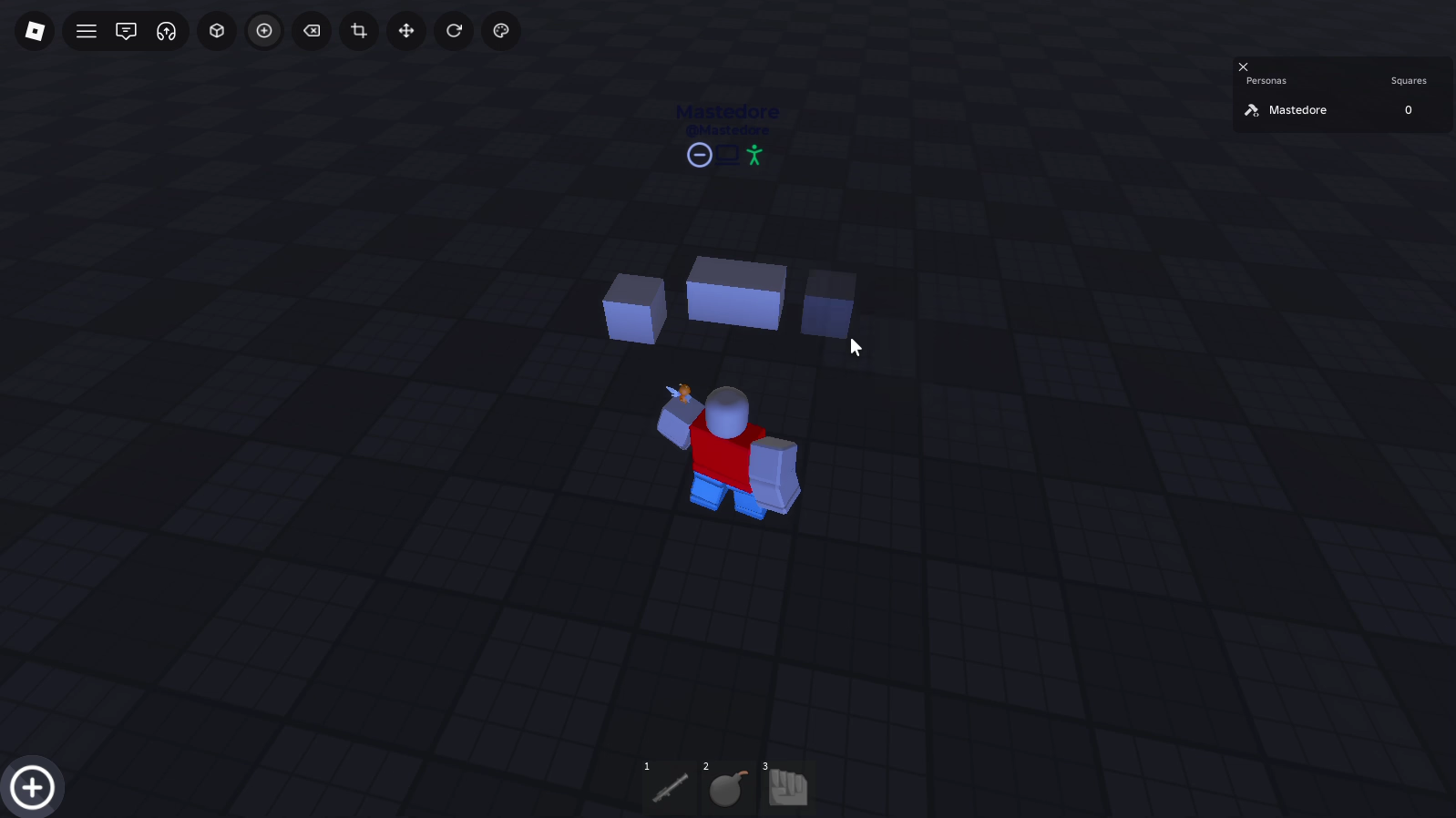
Abstract. The build tool (Q) opens Build Settings, where you pick the block’s type (block, wedge, corner wedge or truss), its shape (block, cylinder or ball, for regular blocks), one of 28 materials, its transparency and reflectance, and whether it’s anchored and protected. A 3D preview spins with the current settings. In the world, a translucent ghost block follows the mouse, snapped to a grid and resting against the face you point at, and clicking places a real one. This article covers how the window’s sections share their state through the attributes of a BindableFunction, how the preview swaps its part’s class, the snapping rule for the ghost and an asymmetry in it, and what the server does to create the block.
1. The problem
Placing a block on a grid needs three things: a position under the mouse, snapped; an offset so the new block rests against the face instead of sinking halfway into it; and the properties the player chose. The window that holds those properties is split into sections that are separate scripts, so they also need somewhere to share their state.
2. The settings as a small store
new.exe has a BindableFunction called DataCollector.cmd, with a BindableFunction called GetData.cmd and a BindableEvent called Signal.js inside it. The store is the attributes of DataCollector.cmd itself. Each section of the window writes with collector:Invoke(property, value) and reads with getter:Invoke(property). The script that answers, DataCatch, saves the value as an attribute, applies it to the preview part and fires Signal.js so the ghost block rebuilds itself. The starting state lives in those attributes too: type Part, material SmoothPlastic, shape Block, anchored and protected on, no transparency or reflectance.
What keeps it short is that the attributes have the same names as the part’s properties, so applying a change to the preview is
ok, err = pcall(function()
	prepart[property] = value;
end)
and a failure prints the code 0xA6 through the same logging channel the server uses. Changing the type is the exception, because a Part can’t turn into a WedgePart. In that case DataCatch destroys the preview part, clones a template of the new class and copies every attribute onto it, skipping Protected and Type, which aren’t properties, and Shape unless the new class is Part, the only one of the four that has it. While the type isn’t Part, the shape section is covered with a shadow and forces Block.
Transparency and reflectance are sliders. While the mouse is held on one, every frame it computes
from the mouse’s and the bar’s left edge and width , moves the knob to and writes to the store.
Each material button has a ViewportFrame with a small spinning part in that material, and a toggle tints them with a colour that suits each one. Hovering a material shows its name in a tooltip that follows the mouse and sizes itself to the text with TextService:GetTextSize.
3. The preview
The preview is a ViewportFrame whose camera has a field of view of 10°. A field that narrow behaves like a telephoto lens: the part has to be far from the camera to fit in the frame, and perspective almost disappears, so the block looks close to a technical drawing. The mouse wheel zooms by moving the field of view between 7° and 15°. Every frame the part turns around its vertical axis by
where speed is the Rotation Speed field, from 0 to 3, and is the frame’s duration. The makes the speed the same at any frame rate, as if every frame lasted a sixtieth of a second. Before turning, it resets the part’s X and Z orientation, so it can’t drift off the vertical. The Isometric checkbox stops the spin and tilts the part to . That’s a tilted view, not an isometric one, which would need a 45° turn and an elevation of .
4. The ghost and the grid
While the tool is on, every frame places the ghost like this:
local pos = mouse.Hit.Position
local round = {
	x = Run.GetSnapAmount(pos.X);
	y = Run.GetSnapAmount(pos.Y);
	z = Run.GetSnapAmount(pos.Z)
}
vector = Vector3.new(round.x,round.y,round.z) + Run.GetSurfaceVector(mouse.TargetSurface);
block.Position = vector
with mouse.TargetFilter set to the ghost, so the mouse’s ray goes through it instead of landing on the ghost’s own faces. GetSnapAmount snaps each coordinate of the hit point with , where is the move tool’s increment, read from Transform.exe, so changing the move increment also changes the build grid. Then it adds the face’s normal, Vector3.FromNormalId(mouse.TargetSurface), which is 1 stud long. Blocks are 2 studs on every side, so 1 stud is half a block, and the ghost’s centre ends up half a block away from the face, with its near face on the surface. Per component, with the hit point and the face’s normal:
On the baseplate, whose top is at , the centre goes to and the block spans 0 to 2.
4.1 Gaps and overlaps
Along the face’s normal, ceil always rounds towards , whichever way the face points. That makes two kinds of faces behave differently when they aren’t on the grid. Take a face perpendicular to X at and an increment . The snapped coordinate falls somewhere in .
- If the face points to , the target is on the side, the ghost’s centre is at , and its near face lands in : flush, or leaving a gap smaller than one increment.
- If the face points to , the target is on the side, the centre is at , and its near face lands in too, which is now inside the target: flush, or sunk into it by less than one increment.
While every block stays on the grid, is a multiple of , the ceiling changes nothing and both cases are flush. With the default 2-stud blocks and an increment of 0.5, that’s how the game normally is. Once a block has been scaled or moved off the grid, building on its top, right or back face leaves a small gap, and building on its bottom, left or front face sinks the new block into it. Snapping only the two coordinates along the face, and setting the third from the face’s position plus half a block, would make both cases flush.
There’s a second problem. TargetSurface is a face in the target’s own axes, but FromNormalId is added in world axes, so on a rotated target the offset points the wrong way. The ghost itself always comes out aligned with the world.
5. Placing
On click, the tool reads every setting from the store and calls the server:
Gun:InvokeServer(vector, floatingXD, prot, material, shape, Type, trans, refl)The remote is called Gun on the client and PlaceRep on the server, and floatingXD is whether the block is anchored. The server keeps eight templates in ReplicatedStorage.Replicable, the four types, each anchored and unanchored, named with a suffix: Partyes, Partnot, WedgePartyes and so on. It picks one by joining the type with "yes" or "not", clones it into the player’s .reg folder, sets its position, its shape (inside a pcall, because only Part has one), its material, transparency and reflectance, and cuts the last three letters off its name. The suffix lookup works as a whitelist by accident: a type that isn’t one of the four matches no template, the handler errors and nothing is cloned. The templates fix the size at 2 studs and the colour at grey, so every block starts the same and the other tools take it from there.
If Protected is on, the server wraps the block with Solar3.New and stores its owner. As the overview explains, that costs a web request per block and nothing ever reads it.
6. The first version
The build tool I wrote as juank was called Holograma. It was a Tool that created the ghost when equipped and destroyed it when unequipped, and it already used the same rule, math.ceil per coordinate plus a unit vector picked by the face. It wrote the six vectors out with one if per face, where the rewrite uses FromNormalId, and its grid was fixed at 1 stud. On click it sent the server the snapped position and the face’s vector separately. The comment at the top of the script says, in Spanish, “made by juank, testing what I know about the mouse”.
7. Limitations
- The asymmetry between faces and the wrong offset on rotated targets, from section 4.1.
- Every write to the store fires
Signal.js, and each one destroys and rebuilds the ghost. While you drag the transparency slider, that happens every frame. - The grid is the move tool’s increment, which you change in a different window.
- The server accepts any position and doesn’t limit how fast blocks get placed.
8. What I took away
Naming the settings after the properties is the part I’d keep. The store and the preview speak in property names, so a new setting only needs its section of the window and one more argument on the server. The snapping rule comes from the first version and survived the rewrite because it’s right in the common case, where everything sits on the grid. Working it out with numbers is what showed me the cases where it isn’t.
This text by Mastedore. All rights reserved.