Build
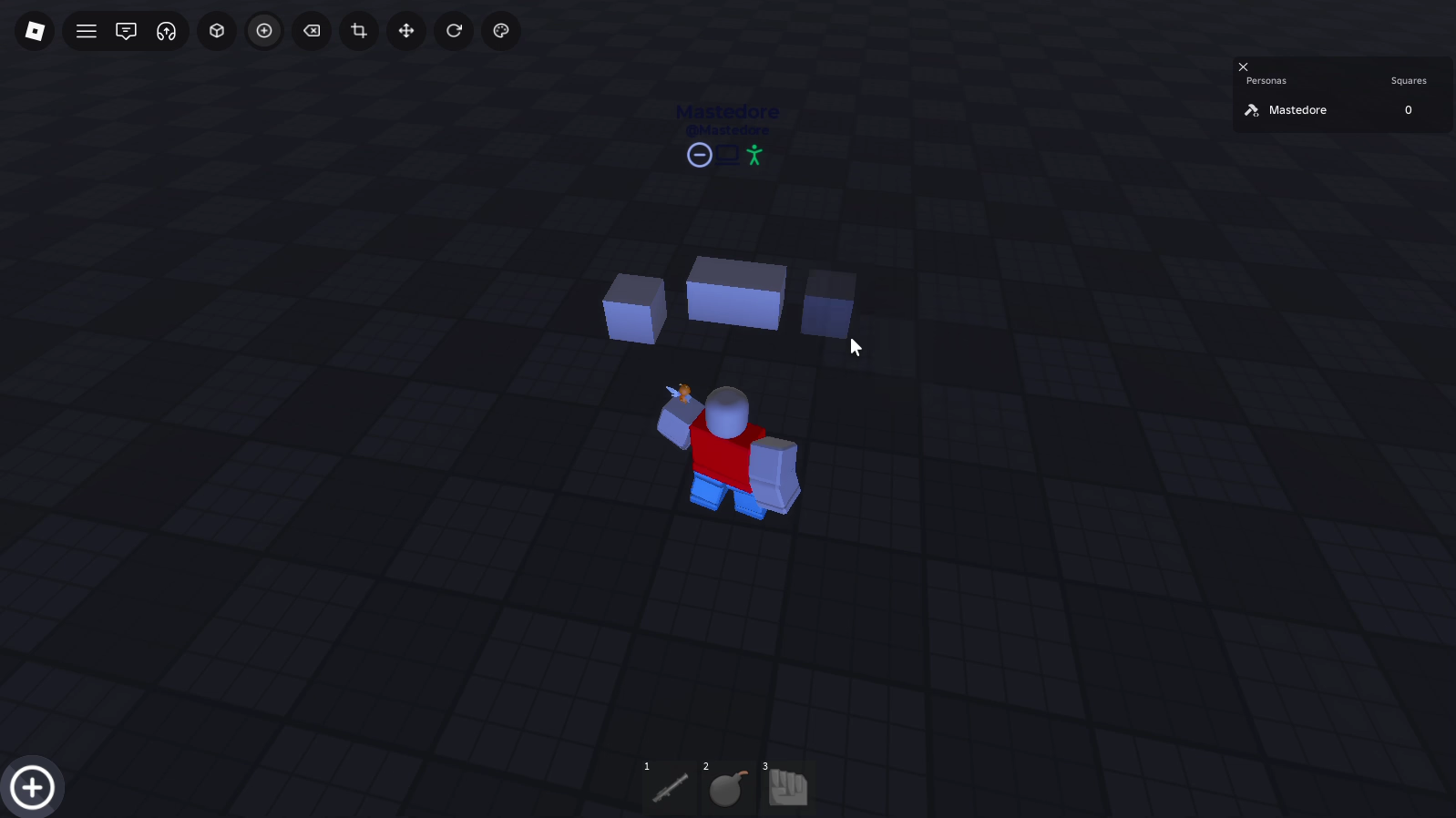
The build tool (Q) is how blocks get into the world. You set them up in a window and place them with a click.
How it works
- The Build Settings window lets you pick the type (block, wedge, corner wedge or truss), the shape (block, cylinder or ball), one of 28 materials, the transparency and the reflectance.
- A 3D preview spins with your settings. You can zoom it with the mouse wheel, change how fast it turns or tilt it.
- In the world, a see-through ghost block follows your mouse, snapped to a grid, and rests against the face you’re pointing at.
- Click to place it. Anchored blocks stay where you put them, and the rest fall.
- The Protected option was meant to stop other players from editing your blocks, but the server never enforced it.
Under the hood
The window’s sections share the settings through attributes named like the block’s properties, so the preview can apply them as they are. How the grid snapping works, and why it can leave a small gap on some faces and an overlap on others, is in the portfolio version.