A colour wheel from an angle and a distance.
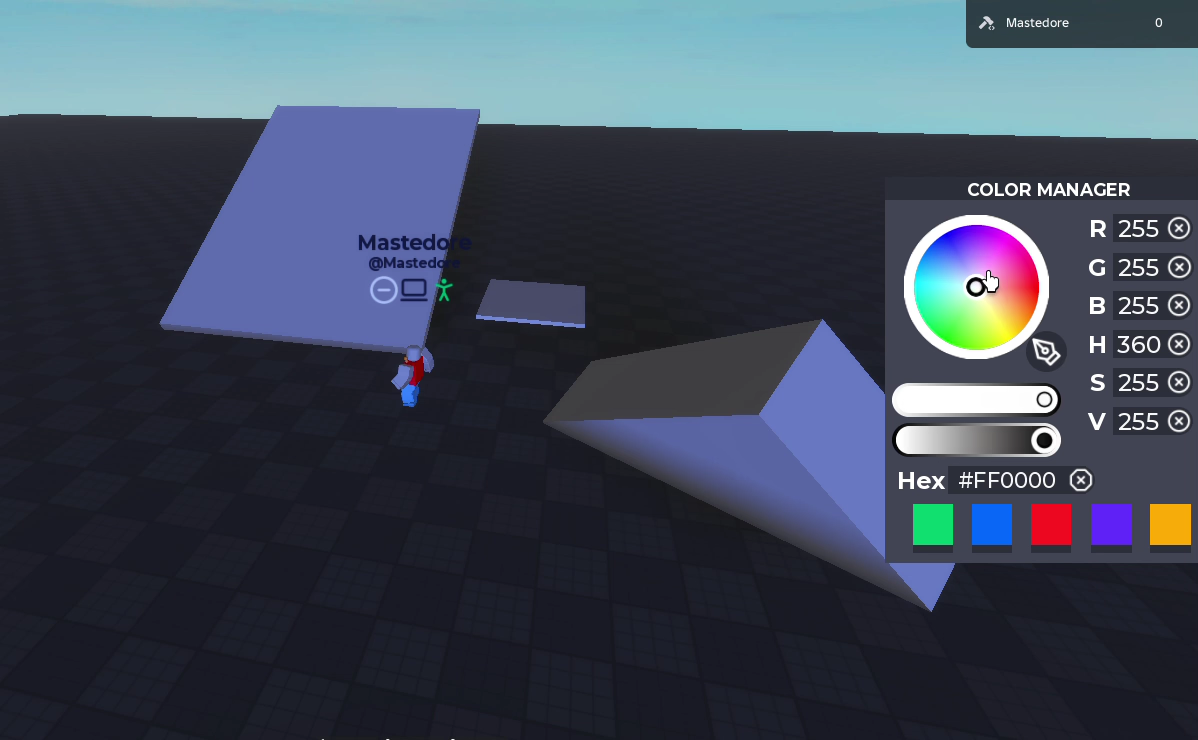
Abstract. The colour tool (F) opens the Color Manager, a window with a colour wheel, two sliders, fields for red, green, blue, hue, saturation and value, a hex field, five preset colours and an eyedropper. Clicking a block paints it, and the outline around the block under the mouse takes the chosen colour as a preview. The window is about 480 lines in one script, ColorInteract, built on the HSV model: the hue is an angle on the wheel, the saturation is the distance from its centre, and the value is shown by darkening the whole wheel. This article goes through the conversion from the mouse to a colour and back, why multiplying the wheel’s image by a grey is an exact way to show the value, how seven fields stay consistent, the eyedropper, what the server does, and a few bugs I found while reading it again.
1. The problem
A colour picker has to work both ways. From the mouse to a colour, when you click the wheel or a slider, and from a colour to the controls, when you type a number, pick a preset or copy a block’s colour, so that the picker, the sliders and every field show the same thing. With a wheel, the natural model is HSV, because hue and saturation map to polar coordinates: the angle around the centre and the distance from it.
2. From the mouse to a colour
First the mouse position is normalized to the wheel’s box, so is its top-left corner, its bottom-right and its centre. The offset from the centre is . If the mouse is outside the circle, which happens when you keep dragging past the edge, it’s projected onto the rim:
The hue is the angle between and the horizontal axis . The code computes it in 3D, with the general formula for the angle between two vectors:
The magnitude of the cross product is and the dot product is , so their atan2 is , without the precision problems that acos has near 0° and 180°. But that angle has no sign. A magnitude is never negative, so only goes from 0° to 180°, and the code recovers the other half by hand: if , the hue is . All of that equals taken modulo 360°, which is one call.
The saturation is the distance from the centre relative to the radius, . Both go into the H and S fields, H in degrees from 0 to 360 and S from 0 to 255, and from there the same function that handles a typed HSV value builds the colour with Color3.fromHSV. Screen coordinates grow downwards, so a growing hue goes clockwise on screen.
3. From a colour to the picker
To place the picker for a given colour, DisplayColor does the inverse:
with and between 0 and 1, from Color:ToHSV(). It’s the same polar map with the same downward Y, so after clicking the wheel, the picker lands where the mouse was, up to the rounding of the fields.
4. The value is a tint
The wheel image shows every hue and saturation at full value, . To show the colours at another value, the code doesn’t redraw anything. It sets the image’s ImageColor3 to a grey of that value:
wheelmgr["Wheel.dll.mui"].ImageColor3 = Color3.new(val,val,val);ImageColor3 multiplies every pixel of the image by that colour, channel by channel, and for HSV that’s exact because of how the model is defined. With and , each RGB channel is plus a fraction of that depends only on the hue, so every channel is times a function of and :
Multiplying the full-value wheel by gives exactly the wheel at value . The sliders use the same idea: the saturation bar’s background is Color3.fromHSV(h, 1, 1), the value bar’s is Color3.fromHSV(h, s, 1), and their knobs sit at and , so full is on the left.
SolarFramework also carries a borrowed colour wheel module, credited in its header to morashsPeasant, that works in HSL. Nothing uses it.
5. Seven fields in sync
The fields are updated by three functions, one per source. UpdateFromRgb runs when H, S or V change and recomputes R, G and B; UpdateFromHsv does the opposite; and UpdateFromHex runs when the hex code changes. Each one reads its source fields, builds the colour, writes the other fields and calls DisplayColor. The names refer to the fields each function writes, not the ones it reads.
H is stored as a whole number of degrees, and S, V, R, G and B as whole numbers from 0 to 255. Each update goes one way, from the field you edited to the rest, so values don’t drift through repeated conversions. The wheel does go through the fields, so it can only produce whole-degree hues, 360 of them.
The hex field accepts #RGB, which it expands to #RRGGBB, and pads shorter codes with zeros on the right, so #12 becomes #120000. Going back to hex, each channel goes through ToPreciseHex, a base-16 conversion I wrote by hand: it takes the remainder of dividing by 16 as a digit, divides, repeats, reverses the string and adds a leading zero to values below 16. A few lines above it there’s Int.ToHex, which does string.format("%X", num) and is never called. "%02X" would have done all of ToPreciseHex in one call.
Two bugs in this part cancel out or don’t matter. The first: the variables are declared with s = window:WaitForChild("Value") and v = window:WaitForChild("Saturation"), crossed. In the window, the label next to the box called Saturation says V, and the one next to Value says S. The two swaps cancel, and the box the player reads as S does show the saturation.
The second is in how the code avoids feedback loops. Before writing to the fields, every update disconnects all the FocusLost handlers and reconnects them afterwards. The connections are stored as keys of a table, and the reconnect only happens if #connections <= 0. In Luau, # counts a table’s array part, and a table whose keys are connections has none, so #connections is always 0, the check always passes, and the table keeps every dead connection and gains fourteen new ones per update. Nothing fires twice, because the disconnect loop walks every key, dead ones included. And the whole routine wasn’t needed: FocusLost fires when the player leaves a box, not when code assigns Text, so there was no loop to prevent.
6. Presets and the eyedropper
The five presets are buttons whose BackgroundColor3 is the colour. Clicking one writes its R, G and B into the fields and everything updates from there. The eyedropper button turns its icon into an X and waits for the next click in the world, and the Color of the part under the mouse goes into the R, G and B fields. The waiting is a repeat wait() until ValidTargetFound, which checks every frame until a click lands on something. While it’s active, a CopyingColor flag stops the tool from painting the block you’re copying from.
7. Painting
Color.exe’s Main.lua, which its ED.lua starts and stops, does two things. Every frame, it puts a SelectionBox on the part under the mouse and gives it the chosen colour, so the outline previews the paint. And on click, it fires ColorRep with the part and the colour. Unlike the transform tools, it doesn’t change the block locally first, so the colour appears when the server’s change replicates. The server runs the checks described in the overview and assigns Color. The baseplate is Locked, so painting it gets 0xFB back.
8. The first version
The colour tool I wrote as juank was a Tool that held a paint bucket, and the paint took the chosen colour. Every time the mouse moved over a part, it started a loop whose exit condition was herramienta.Unequipped:Wait(). Wait doesn’t return true or false; it pauses the thread until the event fires. So each loop updated the outline once and then slept until the tool was unequipped, and since Unequipped passes no value, the condition came out nil, the loop went around again and waited for the next unequip. Every mouse movement left one more of those threads waiting.
The colours came from an older palette that’s still in the place: a square for hue and saturation and a bar for value. It converted to RGB with a function of its own that takes the hue’s six sectors, blends towards white by the saturation and then towards black by the value. Blending from black by is multiplying by , the same thing the tint in section 4 does.
9. Limitations
- The eyedropper waits by polling every frame.
- Painting has no local preview on the block itself, only on the outline, so with latency the colour arrives late.
- Like every other tool, the server doesn’t check who owns the block.
- About 480 lines in one script that handles input, conversion and display.
10. What I took away
The best idea in this tool is the tint, and it’s exact for a precise reason: in HSV, the value multiplies the whole colour. Most of the bugs I found are about Luau rather than colour, like # on a table without an array part, or an event I assumed fired when code changed a box’s text.
This text by Mastedore. All rights reserved.