Growing a block from one face.
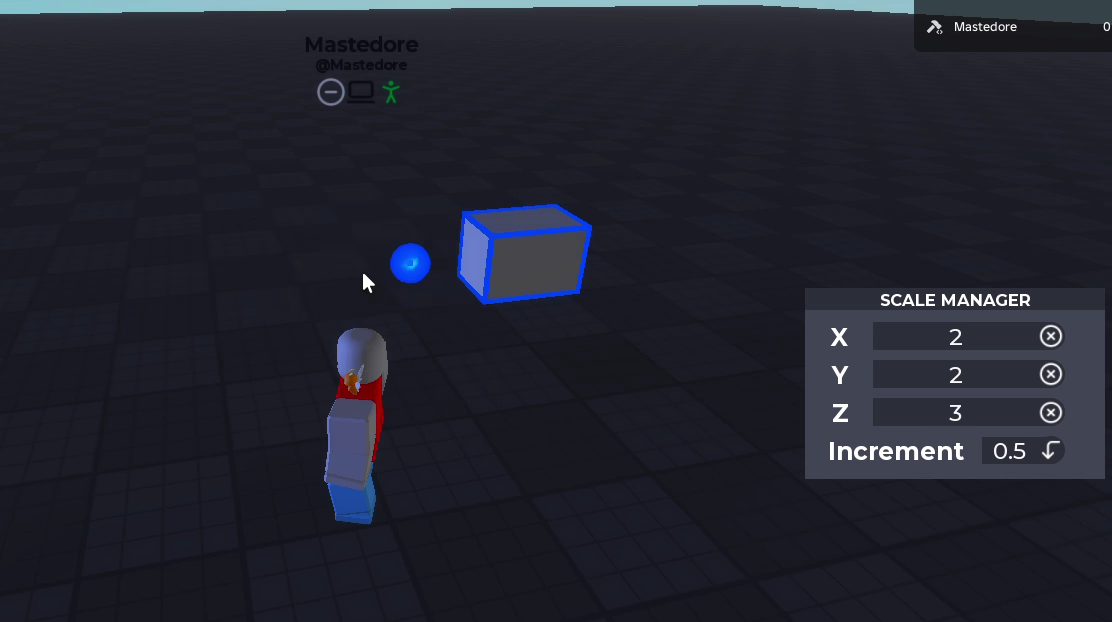
Abstract. The scale tool (Z) puts six handles on the selected block, one per face. Dragging a handle grows or shrinks the block towards that face only, and the opposite face stays where it was. Roblox resizes parts around their centre, so every change in size has to come with a shift of the block by half that change, towards the face, in the block’s own axes. This article goes through that half-shift and why it pins the opposite face, the trick I used to get a direction for each face, the snapping formula (which mixes units and only behaves when you drag slowly), the fields where you can type a size, what reaches the server, and the first version, which treated three of the six faces as if they pointed the other way. The current script has a note in Spanish dated 15 May 2022 saying it replaced that one and was written “totally from scratch”.
1. The problem
A Roblox part is a box with a centre, a rotation and a size. Changing Size keeps the centre where it is, so the box grows by the same amount on both sides of each axis. In a building tool that’s rarely what you want. When you drag the top face of a wall upwards, you expect the bottom to stay on the floor.
The tool uses Roblox’s Handles in resize style. They report which face (NormalId) is being dragged and how far the mouse has moved along that face’s normal, in studs, since the button went down. From those two values the tool has to produce a new size and a new position, snapped to an increment the player picks, and it has to work on blocks that have been rotated.
2. The half-shift
Take one axis of the block, with unit direction in world space, centre and size along that axis. Its two faces sit at
If the face being dragged is and the size changes by , the new size is , and the centre moves half of that towards the dragged face:
Then the opposite face is at
so it hasn’t moved, while the dragged face moved the full . The same holds when shrinking, with , and for the other face, with in place of . The code does exactly this on every drag event. This is the branch for the right face:
local cf = part.CFrame * CFrame.fromAxisAngle(Vector3.new(0, 1, 0), -math.pi/2)
local lv = cf.LookVector
local cf2 = part.CFrame
local size = part.Size
part.Size = Vector3.new(part.Size.X + NewDelta, part.Size.Y, part.Size.Z)
if part.Size == size then
	part.CFrame = cf2 + lv * (0.5*NewDelta)
	cf2 = part.CFrame
end
part.CFrame = cf2 + lv * (0.5*NewDelta)
lv is , NewDelta is and the last line is the half-shift. Since the CFrame is assigned from a copy saved before touching Size, the position always comes from the formula and not from whatever Roblox did with the part when its size changed.
3. A direction per face
The formula needs , the direction of the dragged face in world space, which depends on how the block is rotated. The code gets all six from LookVector, which points out of the front face. For every other face it rotates the block’s CFrame until its front points where it needs, and reads the LookVector of that:
| Face | Rotation applied to the block’s CFrame |
Same as |
|---|---|---|
| Front | none | LookVector |
| Back | around Y | -LookVector |
| Right | around Y | RightVector |
| Left | around Y | -RightVector |
| Top | around X | UpVector |
| Bottom | around X | -UpVector |
It’s correct. A rotation sends the front direction to , which for is , the right direction. Because the rotation is multiplied on the right of the block’s CFrame, it happens in the block’s own axes, so what comes out is the block’s right direction in world space. I checked all six against a block with an arbitrary rotation and they match to float precision.
All six are also cf:VectorToWorldSpace(Vector3.FromNormalId(face)), one line for every face, and the move tool, from the same time, already used exactly that expression. I didn’t connect the two, and that’s part of why the scale script has six copies of the same block of about 50 lines, one per face, that only differ in the rotation and in which component of Size they change.
4. Snapping
4.1 The formula
Each face keeps an accumulator with how much it has already applied since the button went down. If is the distance the handle reports, then is how far the mouse is ahead of the block. When the block grows, with increment , the step is
and shrinking is the same with when . The first case multiplies a number of studs by a number of studs. With small increments that makes the block fall behind the mouse, and with big ones it would jump studs at once, 16 per step with an increment of 4. The second case, an if i >= 2 then NewDelta /= i, reads like a patch for the big ones: divide the increment back out and the jumps go away.
4.2 Why it seemed to work
With the default increment of 0.5 and a smooth drag, the formula behaves. The block only moves once the mouse is at least one stud ahead, where , so each step adds exactly and the block follows the mouse half a stud to a stud behind. That’s the case I tested with. The trouble shows up with other increments or with a fast mouse. I rewrote the branch in a small script and simulated two drags: a slow one, where the mouse moves 0.05 studs per event over 10 studs, and a fast one, 3 studs per event over 12 studs.
| Increment | Slow drag: block grew | Slow drag: max lag | Fast drag: block grew |
|---|---|---|---|
| 0.01 | 5.31 | 4.69 | 0.27 |
| 0.25 | 9.25 | 1 | 5.75 |
| 0.5 | 9.5 | 1 | 9 |
| 1 | 10 | 1 | 12 |
| 2 | 10 | 2 | 12 |
| 4 | 8 | 4 | 12 |
Below an increment of 1, an event can add at most , so the block’s speed is capped by how often the event fires. At 0.01 the block grows a hundredth of a stud per event and ends 4.69 studs behind on the slow drag, and on the fast one it barely moves. Typing “0” in the increment field selects exactly 0.01, so the tool had a slow precision mode by accident. From 2 upwards, the increment is only a threshold. The block waits until the mouse is more than studs ahead and then adds whole studs, whatever that number is, and on the fast drag with an increment of 4 the steps were 6 studs.
The formula I was after is the one the move tool already used:
which always moves in multiples of , never falls more than behind and doesn’t care how fast the mouse moves.
4.3 The minimum size
When shrinking would take the block below the increment, the tool sets , so the block ends up exactly studs thick, and the increment works as a minimum size too. The field accepts 0.01 to 4 studs. The condition that triggers this clamp compares with , mixing the raw distance with the scaled one again, so it can kick in a little early or a little late.
4.4 When the size doesn’t change
The if part.Size == size in the snippet catches the case where assigning Size didn’t change anything, for example at Roblox’s size limit. Then the half-shift runs twice and the block moves the whole . The handle keeps following the mouse, but the block slides instead of growing.
5. Typing a size
The window shows the size in three fields, rounded to three decimals by Tena.DecimalRedux, which is a string.format("%.3f"). Typing a number filters out anything that isn’t a digit or a dot, assigns that component of Size and sends the block to the server. That path doesn’t shift the block, so a typed size grows from the centre, symmetrically, while a dragged one grows from a face. They’re two different operations, and the window doesn’t tell you which one you’re getting.
6. What reaches the server
While you drag, every change is local. When the button comes up, the tool fires ScaleRep once with the block, its size and its CFrame, and the server, after the checks described in the overview, assigns Size and then CFrame. The order matters for the same reason as on the client: the CFrame is the one the formula computed, so it has the last word on the position. The server doesn’t look at the values, so any size the client sends is accepted.
7. The first version
The version I wrote as juank is still in the place, disabled. It computed everything from the state at the moment the button went down, which is a good idea, with this:
where is Vector3.FromNormalId(face). For the right, top and back faces the normal is positive and the block grew. For the left, bottom and front faces it’s , and , so pulling those faces outwards made the block smaller. The position was then rebuilt with CFrame.new(x, y, z), which carries no rotation, from offsets like cframe.X - size.X/2 taken along the world’s axes. On a block that wasn’t aligned with the world, scaling reset its rotation and placed it with the wrong axes. It fired the remote on every drag event, and its maximum size was math.huge / 8, which is still infinity. The rewrite fixed the three real problems: one direction per face in the block’s own axes, the half-shift, and one message on release.
8. Limitations
- Six copies of the same block, which is how a fix to one face misses the other five.
- The snapping formula from section 4. Since each event adds a step on top of the current size, the result depends on how the mouse moved and not only on where it ended. Computing from the state at mouse-down, like the first version and the move tool do, avoids that.
- The server trusts the size and the
CFrameit receives. - The increment is read by a coroutine that polls the text field every frame instead of reacting when it changes.
9. What I took away
The half-shift is what made the tool work, and I still think it’s the right idea: change the size, then move the centre half of that change towards the face. What I didn’t have was the vocabulary. I got the six directions by rotating a CFrame until its front pointed where I needed, when the block already had them as RightVector and UpVector, and I snapped with a formula that multiplied studs by studs and patched it when it broke. Both work in the case I tested, the default increment and a calm hand, and the simulation shows how narrow that case is.
This text by Mastedore. All rights reserved.